On a new VPS, "Invalid account" in the bottom-right corner of MT4 means the broker's server answered and refused the login: a wrong account number, password or server name, an MT4 account opened in MT5, or an account the broker has expired or archived. "No connection" means the terminal reached no trade server: wrong login details, a server that is missing from the terminal's list or misspelled, or no network. "Old version" means the broker wants a newer build. Each has its own fix, and a bigger VPS solves none of them. The fixes below apply to MT5 as well.

What the connection status says
The status sits in the bottom-right corner of the terminal. When the login works, the corner shows figures (the data received) instead of a message.
| Status | What it means | What to check first on a new VPS | Go to |
|---|---|---|---|
| Invalid account | The server answered and rejected the login | Server name or password typed differently from the PC; MT4 account in MT5; expired demo | Fixes 1 to 4 |
| No connection | No trade server was reached | The login details, then whether the broker's server is in this terminal's list and spelled exactly | Fixes 1, 2 and 5 |
| Common error | Not logged in correctly, like the two above | Log in again from the File menu | Fixes 1 and 2 |
| Old version | The broker requires a newer terminal build | The build number under Help, then About | Fix 6 |
| Figures, connected | Logged in | If the EA still does not trade, the cause is elsewhere | EA not trading on a VPS |
Brokers' help centres describe the two main messages the same way: Libertex ties Invalid account to a wrong account number, password or server, or an expired demo, and No connection to the internet connection or the server. Admirals adds that No connection most often comes from wrong login details.
Fix 1: use the exact server name, and add it if it is missing
- Find the server name in your broker's client portal or in the email that came with the account. It is a name such as
Broker-Live3orBroker-Demo, not the broker's website address. - Open the login window: File menu, then "Login to Trade Account". If the server is in the drop-down list, pick it; do not rely on what the field remembers from before.
- If the server is not in the list, add it:
- MT4: open File, then Open an Account. In the server list, press "add new server" or the Insert key, type an accurate name of the brokerage company (or the server address and port) and press Enter, as the MetaTrader 4 help describes; "Scan" refreshes the ping of the servers listed. Select your server, go on to the next step, choose "Existing trade account", fill in Login and Password, and press "Done" to log in on that server.
- MT5: open File, then Open an Account, type the company name and click "Find your broker", select it, then choose to connect to an existing trading account and enter the account number, password and server.
- If the broker is still not found, install the MetaTrader your broker distributes on its own website instead of a generic copy, and log in there. The same search is also covered in check broker ping in MT4 and MT5.
Live and demo servers of one broker can differ by a single word or digit, and a live account does not log in on the demo server.
Fix 2: the account number and the password
- Login is the account number: the MetaTrader 5 help defines it as the number of the account, not the email or user name of the broker's website.
- Master or investor password. The master password gives full access. The investor password logs in too, but the account is read-only: the MetaTrader 5 help says it lets you view the account and work with your own Expert Advisors, but not trade. An EA that has to trade needs the master password.
- Type the password by hand if pasting fails: passwords are case-sensitive, and a pasted space at the end is enough to be refused.
- A password changed somewhere else. If you reset the trading password on the broker's portal, every terminal that saved the old one now gets Invalid account. MT5 can also ask you to change the master password right after login; the new one then has to be used on every other machine, and the change invalidates the investor password.
- Use the password of the trading account, not the one of the broker's website login, if your broker keeps them separate.
Fix 3: an MT4 account in MT5, or the other way round
An MT4 account logs in only through MT4, and an MT5 account only through MT5, as Axi's help centre states. On a new VPS it is easy to install the wrong one. Check which platform the account was opened for in the broker's portal, and install that terminal.
Fix 4: an expired demo or an archived account
An account that worked before can be refused for reasons on the broker's side:
- Demo accounts expire. The limits are the broker's own. Axi, for example, says its demo accounts are valid for 30 days from creation and cannot be reactivated; Libertex also points to an expired demo for Invalid account. Open a new demo and log in with its number.
- Inactive live accounts get archived. FBS, for example, says real MT4 accounts are archived automatically after 90 days of inactivity and can be restored from its Trader Area. Other brokers use different rules and procedures: search your broker's help centre for "archived account".
Fix 5: No connection although the details are right
- Click the status in the corner and choose "Rescan servers", as the RoboMarkets FAQ describes. The list of access points that appears also shows their ping; check broker ping in MT4 and MT5 explains how to read it.
- Open a website in a browser on the VPS. If it does not load, the VPS has no network and the terminal cannot connect either.
- If you installed antivirus or firewall software on the VPS, allow the terminal through it.
- In the terminal's options, on the Server tab, check that no proxy is set unless you need one: the MT4 help describes the proxy as an intermediate between your computer and the trade server.
- If the broker has announced server maintenance, No connection until it ends is expected. If the problem is drops rather than a first login, go to MT4 keeps disconnecting on a VPS.
Fix 6: Old version
The broker requires a newer build than the one installed. Open Help, then About, to see your build number. Axi says an older build has to be updated before you can trade again, and to download the latest version from the broker. The Help menu's "Check for updates" is the other route Admirals gives. It can happen when the terminal on the VPS was copied from an old folder or installed from an old installer: moving MT4 and an EA from your PC to a VPS covers what to copy and what to reinstall.
When the VPS is not the cause
Try the same account number, password and server in MetaTrader on your own PC, with automated trading switched off so nothing trades twice. If it fails there too, the problem is the account or the broker, and a different VPS, location or plan will not change it. Contact the broker with the exact status text and the time. Invalid account and Old version are answers from the broker's server; only the broker can say why it refuses the account.
How this works on Dipgate
- Trading VPS (Windows): you install your broker's platforms yourself. For several terminals of the same broker, choose a different install folder for each, as the knowledge base explains (also in multiple MT4 terminals with the same broker), then move each shortcut into the "My Platforms Autostart" folder.
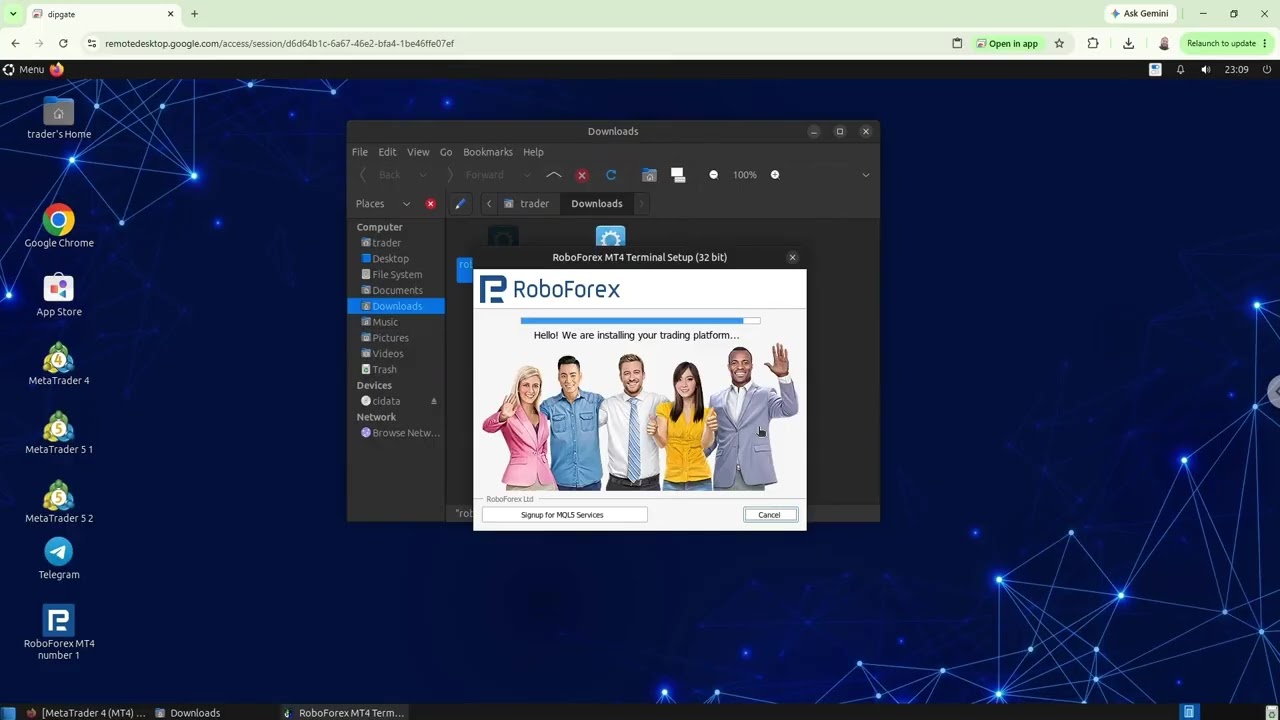
- Metatrader VPS (Linux): MetaTrader comes preinstalled, and you can install your broker's own MT4 or MT5; the Dipgate tutorial below shows it.
- Metatrader In Cloud: one MetaTrader 4 or 5 is preinstalled, chosen when you order, and you log in with the account number, password and server. Fix 3 applies: an MT5 account needs the MetaTrader 5 choice. If you ordered the other one, or your broker's server is not in its list, ask support before changing anything.
The tutorial was recorded on Metatrader VPS (Linux):