


To run multiple instances of MT5 on one VPS, install each copy in its own installation folder: MetaTrader 5 will not run two copies from the same directory. Each instance then logs into one trading account. On a VPS the practical limit is the plan's ceiling, which Dipgate states as a number of trading platforms (up to 3, 6 or 10 on Trading VPS), and real usage depends on your EAs and charts. The full click-by-click install, with shortcut naming, is in the guide to running multiple MT4 terminals with the same broker and works the same for MT5; this page covers what is specific to MT5 and how to count instances against a plan.

Decide first whether you need another instance
A terminal is connected to one trading account at a time. Everything else follows from that.
| What you want | Instances you need |
|---|---|
| Several EAs on one account | One. Open one chart per EA in the same terminal. |
| Two or more accounts trading at the same time | One per account |
| The same EA on several accounts (for example prop firm accounts) | One per account. Read the firm's rules first: see the same EA and IP on several prop accounts. |
| Accounts at different brokers | One per account, each from that broker's own installer |
| Looking at a second account now and then, without an EA on it | One. Log into the other account when you need it, with care (see below). |
The last row hides a trap. If a terminal with an EA on a chart logs into a different account, the EA now trades that account. MT5 has an option, in Tools, Options, Expert Advisors, to disable automated trading when switching accounts. Tick it on any instance where you ever switch accounts. A separate instance per account avoids the question.
Install the second, third and fourth MT5
The install is the same as for MT4 and is described step by step in running multiple MT4 terminals with the same broker: rename the existing desktop shortcut, run the broker's installer again, click Settings on the first screen and pick a new folder, for example C:\MT5\Broker-1234568. That is also the method of Dipgate's knowledge-base article. If you copy a closed installation instead, the program to point the new shortcut at is terminal64.exe.
Each new instance gets a data folder of its own, because MetaQuotes generates the data folder ID from the installation path (MT5 help). Charts, EAs and the saved login of the first instance are not carried over: copy your EAs into the new data folder (File, Open Data Folder, MQL5\Experts), as described in moving your setup from a PC to a VPS.
Give every instance its own shortcut
With five MT5 windows on a taskbar, the shortcut is how you keep them apart. MT5 reads a few keys from the shortcut's Target field (MT5 help):
| Key | What it does | Example in the Target field |
|---|---|---|
/portable | Stores the instance's data inside its installation folder instead of AppData | "C:\MT5\Broker-1234568\terminal64.exe" /portable |
/login: | Starts the platform under a given account | /login:1234568 |
/profile: | Starts the platform with a given chart profile | /profile:Account-1234568 |
/config: | Starts with an alternative configuration file, read-only while the platform runs | /config:C:\MT5\account2.ini |
To set them, right-click the shortcut, open Properties, and add the keys after the closing quote of the path in the Target field, separated by spaces: the MT5 help says one or several keys can follow the path. A full Target can read "C:\MT5\Broker-1234568\terminal64.exe" /portable /login:1234568 /profile:Account-1234568. If a key's value is wrong (an unknown login, a profile name that does not exist), MT5 starts with its default instead, so check the instance after the first start.
Portable mode is optional. For MT5 an instance in Program Files needs administrator rights and Windows user account control (UAC) turned off to use it; in any other folder the user only needs permission to write there (MT5 help), so a path such as C:\MT5\ is simpler. What else to know before turning it on (every start must use the key, and existing data is not moved) is in the portable mode section of the MT4 guide.
Log in and keep the instances apart
- Start each instance from its own shortcut.
- Use File, Login to Trade Account, enter that instance's account, password and server, and tick Save password. With it, the platform reconnects to the most recently used account at startup.
- Put the EAs for this account on their charts and save the profile, with the same name you used in the
/profile:key. - Tick the option to disable automated trading when switching accounts (Tools, Options, Expert Advisors).
- Turn on Algo Trading for this instance.
Market products need one more step per instance: enter your MQL5 account in Tools, Options, Community. MetaQuotes says a buyer can use a product in several platforms simultaneously, provided they are installed on one PC, with any accounts and brokers. So one activation on the VPS serves all its MT5 instances; a second VPS needs a second activation. Details in installing an EA from the MQL5 Market on a VPS.
What the plan limits mean
Dipgate states each VPS plan's ceiling as a number of trading platforms. The cautious way to size is to count every terminal you will keep open: each MT5 instance, each MT4 instance, and any other platform. Real usage depends on the number of charts, the history loaded and how much your EAs compute on each tick. If you plan to sit right at a plan's limit, or are unsure how a given platform counts, ask support before ordering.
| Plan | Trading platforms (up to) | Price |
|---|---|---|
| Trading VPS Bronze (Windows) | 3 | from $20.75/mo, billed annually ($24.90 monthly) |
| Trading VPS Silver (Windows) | 6 | from $40.75/mo, billed annually ($48.90 monthly) |
| Trading VPS Gold (Windows) | 10 | from $62.50/mo, billed annually ($74.90 monthly) |
| Metatrader VPS Bronze (Ubuntu) | 4 | from $9.92/mo, billed annually ($11.90 monthly) |
| Metatrader VPS Silver (Ubuntu) | 8 | from $14.92/mo, billed annually ($17.90 monthly) |
| Metatrader VPS Gold (Ubuntu) | 16 | from $26.40/mo, billed annually ($29.70 monthly) |
Three worked examples:
- Six MT5 accounts, MetaTrader only. Six instances. Trading VPS Silver (6) is exactly at its limit, with no room for a seventh; Metatrader VPS Silver (8) leaves two more, at a lower price, if you do not need Windows software.
- Seven MT5 instances plus NinjaTrader. Eight platforms, and NinjaTrader needs Windows, Silver or higher. Trading VPS Gold (10) is the plan that fits.
- Three MT5 instances now, more later. Trading VPS Bronze holds three; Trading VPS plans can be upgraded later, so you can start there and move up when you add accounts.
For dozens of instances, or heavy backtests and optimisations next to live terminals, Dipgate points to Trading Servers, a whole physical server for one customer, from $325/mo, billed annually.
When this is not the right choice
- One account with many EAs. A second instance adds load and a second login for nothing. Use more charts in one terminal.
- Metatrader In Cloud. It runs one MetaTrader with one trading account. It cannot hold a second instance.
- Prop firm accounts. Firms have their own rules about where and how their accounts are traded. Check the firm's terms before you set this up; prop firm VPS rules collects what the firms publish.
- You only need to watch other accounts. The MT5 mobile app or a second terminal on your own PC, logged in with the investor (read-only) password, uses none of the VPS's platform slots.
How this works on Dipgate
- Trading VPS (Windows Server 2022, 2019 or 2016). The steps above apply as written. Dipgate sets up autologin on the VPS; to have each instance start after a reboot, move its shortcut, keys included, into the "My Platforms Autostart" folder, as explained in autostarting MT4 and MT5 after a VPS reboot. Plans and prices are on the Trading VPS page.
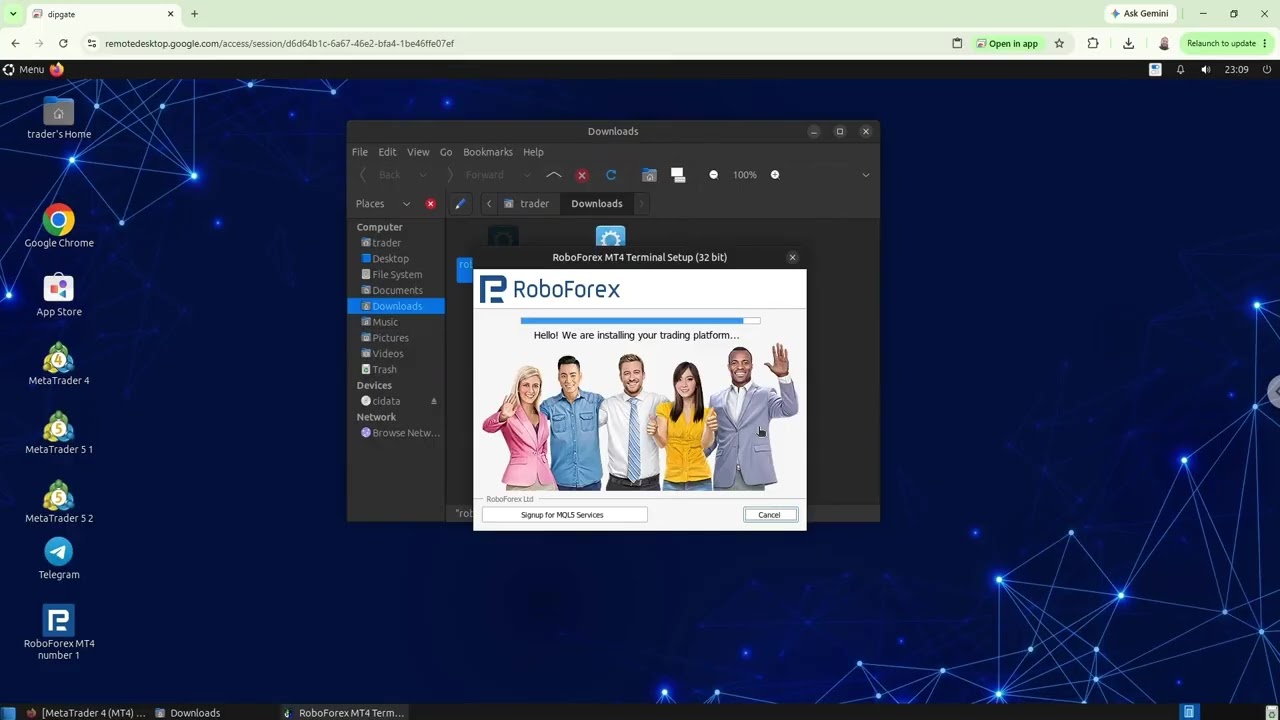
- Metatrader VPS (Linux). An Ubuntu desktop with MetaTrader preinstalled, opened with Chrome Remote Desktop. The site describes it as the option for "several MetaTrader terminals at the lowest price". The Windows shortcut and folder steps on this page do not apply as written there. Dipgate's own video on installing a broker's terminal was recorded on this product:
- Choosing between them. If you run only MetaTrader, Metatrader VPS costs less per platform; if you also need Windows software or NinjaTrader, TradeStation, MultiCharts or ProRealTime, it is Trading VPS. The Windows VPS vs Linux VPS vs Metatrader In Cloud comparison sets the three side by side.


